If you’re like me, and switch a lot between different projects, you’ve most likely run across problems with Node.js versions when building the frontend.
That’s a problem we can solve rather easily with NVM.
But first things first, what is NVM?
NVM (Node Version Manager) is a tool for installing and managing different Node versions. All you need to do is install NVM and the versions of Node you need.
How to install and use NVM on Windows
Download the latest version of NVM (nvm-setup.zip) from Github.
Now, extract and install using the .exe file. It’s easy!
For installing on Linux and MacOS I would refer to the readme found on GitHub.
Now that we have NVM installed we can start using it in our terminal of choice.
The commands I use the most:
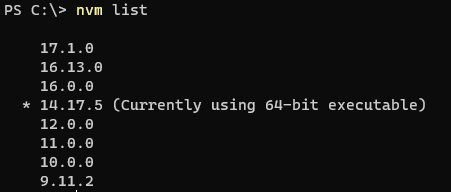
nvm list
Lists the installed versions of node. The selected version is shown with ‚*‘
nvm list available
Shows a list of available Node versions to download

nvm install <version>
This command lets you install different Node versions. To download the latest version just use: nvm install latest.
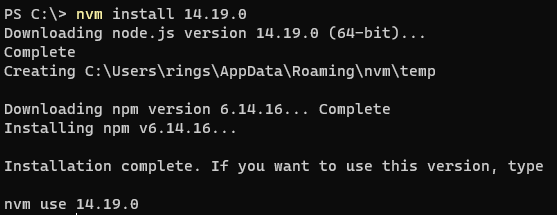
nvm use <version>
Specify what version of Node to use.

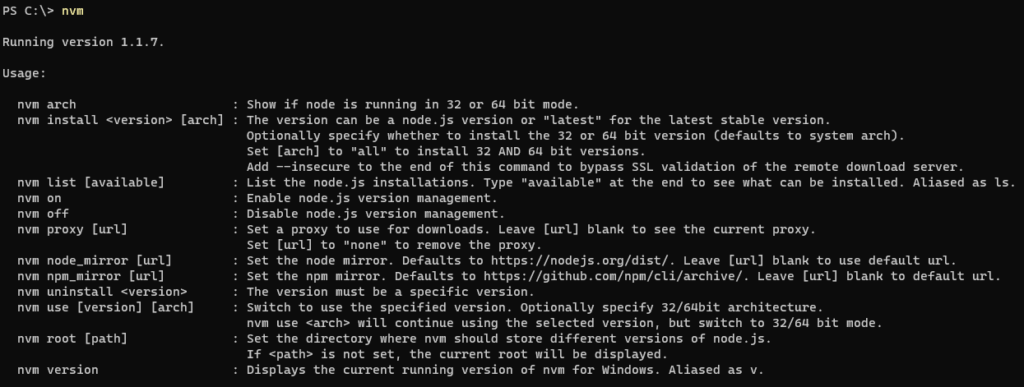
And if you want to see a list of all the commands available just enter NVM in cmd to list them all:
Now if you’re a .net developer like me and use Visual Studio daily, there can sometimes be an issue with Visual Studio not using the Node version specified by NVM.
The fix I found that works for me:
In Visual Studio, go to Tools -> Options -> search for ‚external web tools‘ in the searchbar.
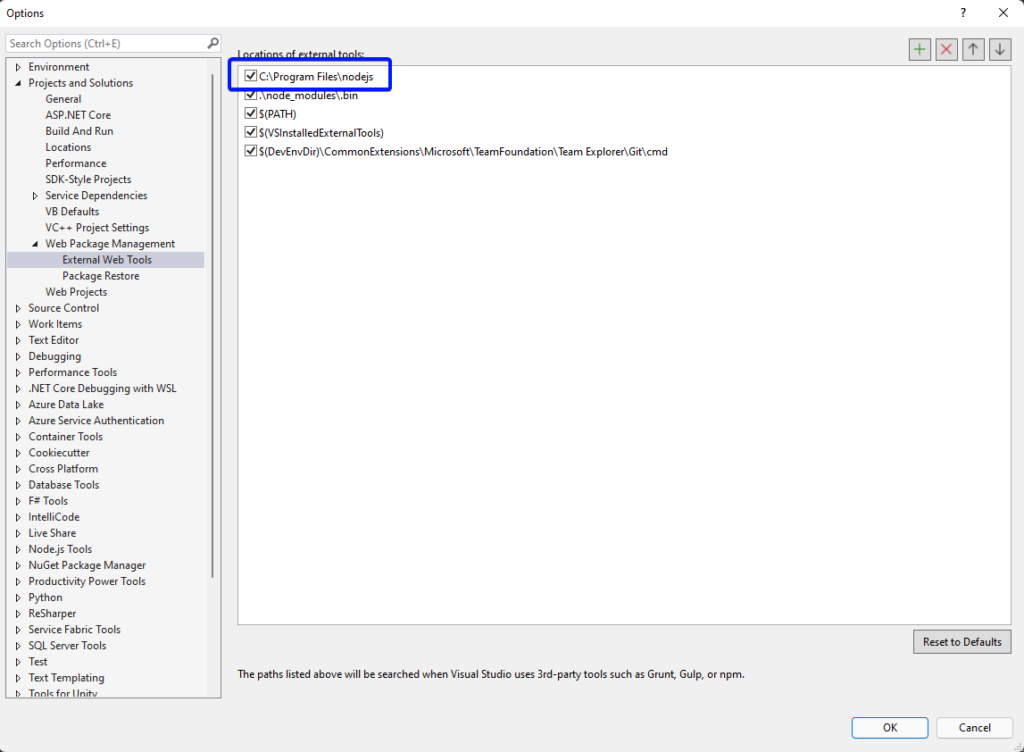
As shown in the image add the path to the folder where Node.js is installed to the top of the list. Usually this is C:\Program Files\nodejs
Most likely it will work now.
Nützliche Kommandos für NVM:
// check version
node -v || node --version // list locally installed versions of node
nvm ls // list remove available versions of node
nvm ls-remote // install specific version of node
nvm install 18.16.1 Code-Sprache: CSS (css)// set default version of node
nvm alias default 18.16.1 Code-Sprache: CSS (css)// switch version of node
nvm use 20.5.1 Code-Sprache: CSS (css)// install latest LTS version of node (Long Term Support)
nvm install --lts // install latest stable version of
node nvm install stable