MAC – VPN automatisch verbinden

  • SkriptEditor öffnen
  • Folgendes Skript eingeben
on idle
	try
		do shell script "ping -oQ -t2 8.8.4.4"
		do shell script "networksetup -connectpppoeservice 'NAME_DER_VPN_VERBINDUNG'"
	on error
		return 8
	end try
	return 60
end idleCode-Sprache: JavaScript (javascript)
  • Exportieren
  • Dateiformat App
  • Unter Systemeinstellungen > Allgemein > Anmeldeobjekte über + das Programm hinzufügen

Expo JS EAS Workflow – Kompakt erklärt

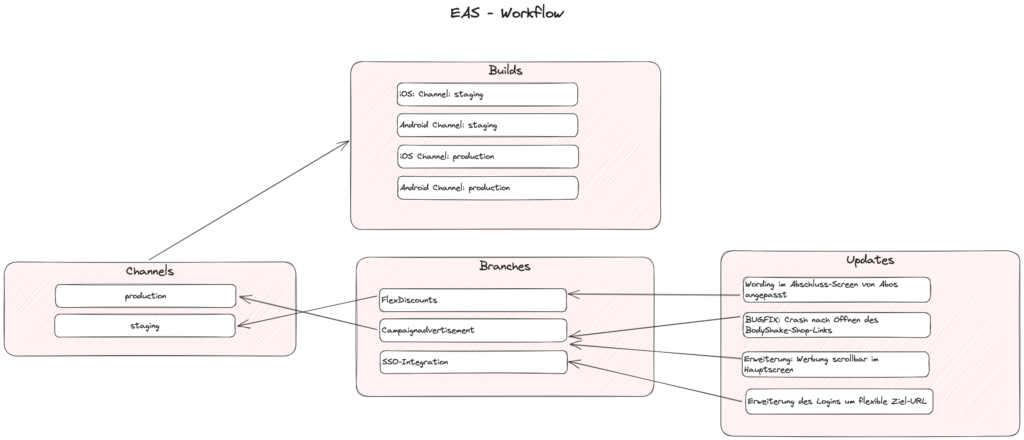
In der EAS – Konfiguration eas.json im Projektverzeichnis werden grundlegend die Channels und deren
Eigenschaften festgelegt. Es werden die Profile „stage“ und „production“ festgelegt und welchen
Channels diese zuzuordnen sind. (Bspw. stage gehört zum Channel staging)

Wenn man nun ein Release in der EAS-Cloud bauen lässt, wird dieses automatisch dem jeweiligen Channel
zugeordnet.

Man kann Branches anlegen, diese einem Channel zuweisen, wiederum Updates einspielen und diese einem
Branch zuweisen. (Kette)

Somit ist man in der Lage einen Build, bspw. Production schnell auf einen vorigen Branch zurückzustellen.

Updates werden über den Branch in den zugewiesen Channels übertragen und OHNE neues Release
im Store sofort per Over The Air Update ausgerollt. Nutzer bekommen dieses Update automatisch
ausgeliefert.

Beispiel eas.json

{
  "cli": {
    "version": ">= 0.52.0"
  },
  "build": {
    "development": {
      "env": {
        "ENV": "development"
      },
      "developmentClient": true,
      "distribution": "internal"
    },
    "preview": {
      "env": {
        "ENV": "development"
      },
      "distribution": "internal"
    },
    "stage": {
      "env": {
        "ENV": "production"
      },
      "distribution": "internal",
      "channel": "staging"
    },
    "production": {
      "env": {
        "ENV": "production"
      },
      "channel": "production"
    }
  },
  "submit": {
    "production": {
      "ios": {
        "appleId": "APPLE_ID",
        "appleTeamId": "APPLE_TEAM_ID"
      }
    }
  }
}Code-Sprache: JSON / JSON mit Kommentaren (json)

EAS – Cheatsheet

Stage Release für Plattformen

eas build –profile stage –platform ios
eas build –profile stage –platform android

Production Release für Plattformen bauen

eas build –profile production –platform ios
eas build –profile production –platform android

Production Release für Plattformen veröffentlichen

eas submit –platform ios
eas submit –platform android

Over the air Update für alle Apps in Release-Channel „staging“

expo publish –release-channel staging

Ein neues Update mit einem neuen Branch erstellen

eas update –branch Campaignadvertisement –message „Kampagnenwerbung integriert“

Einem Channel einen Branch zuweisen

eas channel:edit production –branch version-2.0

DOC https://docs.expo.dev/eas-update/eas-cli/ und https://docs.expo.dev/eas-update/how-it-works/

VSCode Codeschnippsel Variablen

With $name or ${name:default}, you can insert the value of a variable. When a variable isn’t set, its default or the empty string is inserted. When a variable is unknown (that is, its name isn’t defined) the name of the variable is inserted and it is transformed into a placeholder.

The following variables can be used:

  • TM_SELECTED_TEXT The currently selected text or the empty string
  • TM_CURRENT_LINE The contents of the current line
  • TM_CURRENT_WORD The contents of the word under cursor or the empty string
  • TM_LINE_INDEX The zero-index based line number
  • TM_LINE_NUMBER The one-index based line number
  • TM_FILENAME The filename of the current document
  • TM_FILENAME_BASE The filename of the current document without its extensions
  • TM_DIRECTORY The directory of the current document
  • TM_FILEPATH The full file path of the current document
  • RELATIVE_FILEPATH The relative (to the opened workspace or folder) file path of the current document
  • CLIPBOARD The contents of your clipboard
  • WORKSPACE_NAME The name of the opened workspace or folder
  • WORKSPACE_FOLDER The path of the opened workspace or folder
  • CURSOR_INDEX The zero-index based cursor number
  • CURSOR_NUMBER The one-index based cursor number

For inserting the current date and time:

  • CURRENT_YEAR The current year
  • CURRENT_YEAR_SHORT The current year’s last two digits
  • CURRENT_MONTH The month as two digits (example ’02‘)
  • CURRENT_MONTH_NAME The full name of the month (example ‚July‘)
  • CURRENT_MONTH_NAME_SHORT The short name of the month (example ‚Jul‘)
  • CURRENT_DATE The day of the month as two digits (example ’08‘)
  • CURRENT_DAY_NAME The name of day (example ‚Monday‘)
  • CURRENT_DAY_NAME_SHORT The short name of the day (example ‚Mon‘)
  • CURRENT_HOUR The current hour in 24-hour clock format
  • CURRENT_MINUTE The current minute as two digits
  • CURRENT_SECOND The current second as two digits
  • CURRENT_SECONDS_UNIX The number of seconds since the Unix epoch
  • CURRENT_TIMEZONE_OFFSET The current UTC time zone offset as +HH:MM or -HH:MM (example -07:00).

For inserting random values:

  • RANDOM 6 random Base-10 digits
  • RANDOM_HEX 6 random Base-16 digits
  • UUID A Version 4 UUID

For inserting line or block comments, honoring the current language:

  • BLOCK_COMMENT_START Example output: in PHP /* or in HTML <!--
  • BLOCK_COMMENT_END Example output: in PHP */ or in HTML -->
  • LINE_COMMENT Example output: in PHP //

Quelle

Expo SDK 49 Update

Für das Upgrade eines bestehenden Projektes sollte man folgendem Guide folgen ExpoBlog

Wenn man die ReactNavigation implementiert hat, muss man die Bibliothek react-native-gesture-handler entfernen, da Expo diese selbst integriert hat und sonst mit folgender Fehlermeldung quittiert:

Tried to register two views with the same name RNGestureHandlerButtonCode-Sprache: JavaScript (javascript)

Deshalb folgende Vorgehensweise:

  • Alle laufenden Instanzen der App schließen
  • node_modules – Ordner löschen
  • package-lock.json löschen
  • react-native-gesture-handler aus package.json entfernen
  • npm i oder yarn ausführen
  • yarn start

Quelle Stackoverflow

Vercel Edge Functions nutzen

Um die Vercel Edge-Functions nutzen zu können, muss das Projekt mit der aktuellsten Next.JS Version erstellt worden sein. Im API-Endpunkt muss folgende Konfiguration eingefügt werden:

export const config = {
runtime: 'edge',
};Code-Sprache: JavaScript (javascript)

Warum Edge-Functions und was ist das überhaupt?

Edge-Functions sind defacto eine Erweiterung der Serverless-Functions. Das Problem bei den bisherigen Serverless Functions ist folgendes. Wenn ein Request an das API mit einer Serverless Function gemacht wird, hängt die Latenz von zwei Faktoren ab.

Der erste Faktor ist die Location von der der Request gemacht wird. Der zweite Faktor ist die Location wo das API gehostet ist. Desto höher die Entfernung zwischen den beiden Punkten ist, desto höher ist die Antwortzeit. Das kann bei hochfrequentierten APIs schnell zum Problem werden.

Um dieses Problem aufzulösen gibt es die sogenannten Edge-Functions. Bei diesen Funktionen wird ein Netzwerk genutzt und die Funktion auf dem Server, welcher am nächsten an der Anfrage ist, ausgeführt.

Damit ist sichergestellt, dass die Entfernung so kurz wie möglich ist.